Steam + EA App offline activation Instruction
Please follow the instructions carefully!
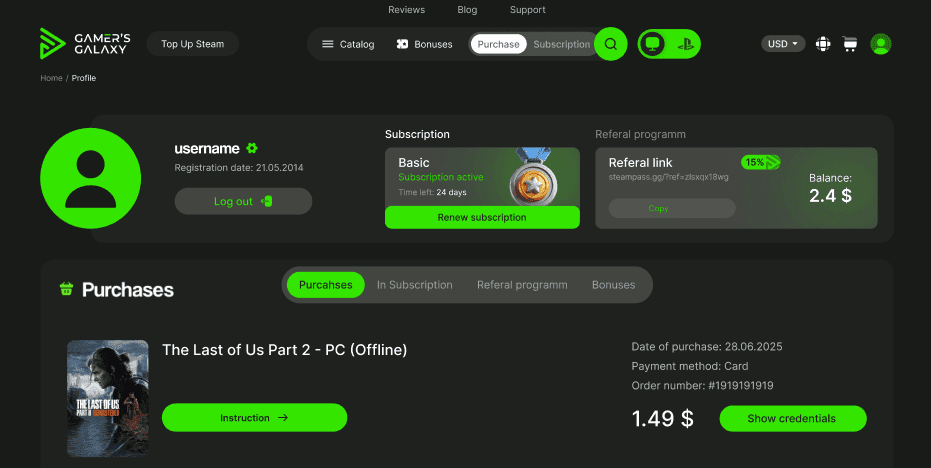
After completing your purchase, go to your personal account.
In the "Purchases" section, you can find the login credentials for your Steam account.
Attention
Access is allowed only through the official Steam client on PC or Steam Deck. Using browsers, mobile devices, or changing account credentials will result in permanent suspension.
Step-by-step guide:
✅ 1. Open Steam
Install the Steam application on Windows if it's not already installed.
✅ 2. Sign in to Steam
Use the login and password you received after purchase.
Check "Remember me".
.
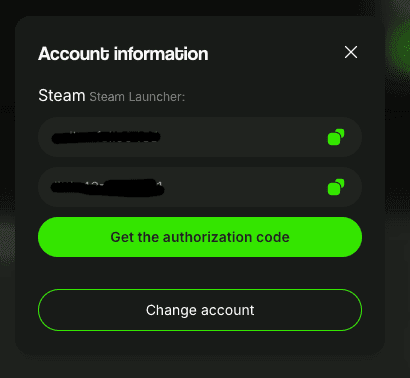
❗If Steam asks for a one-time Steam Guard code when signing in, you can obtain it in your personal account section. Open the purchased game and click the "Get code" button.
✅ 3. Disable Remote Play (Optional)
Open Steam settings, go to Remote Play, and uncheck Enable Remote Play to turn it off.
If this option is unavailable in the settings, click "Request Access" and proceed to the next step. You will be able to return and disable Remote Play later.
.
✅ 4. Install the game from Steam.
Find the game in your library and start the installation.
✅ 5. Log in to EA App
Download EA App from the official website if you don't have it installed
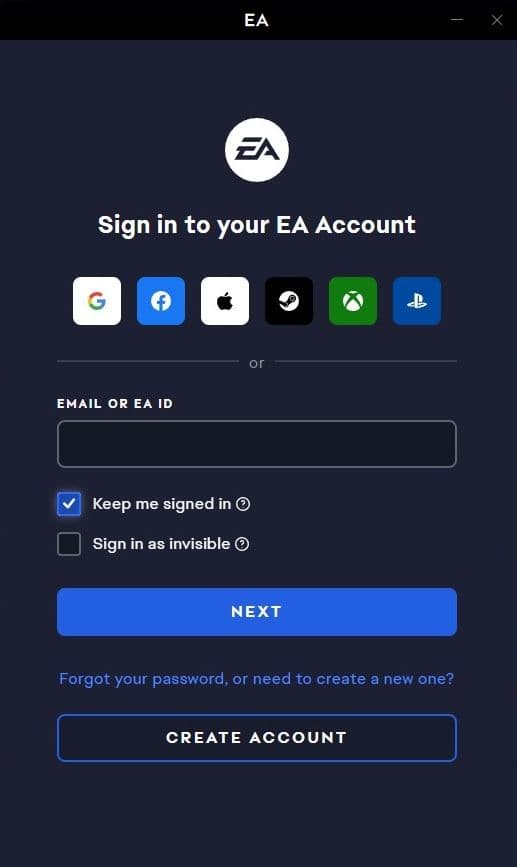
On the sign-in screen, check the box labeled "Keep me signed in"
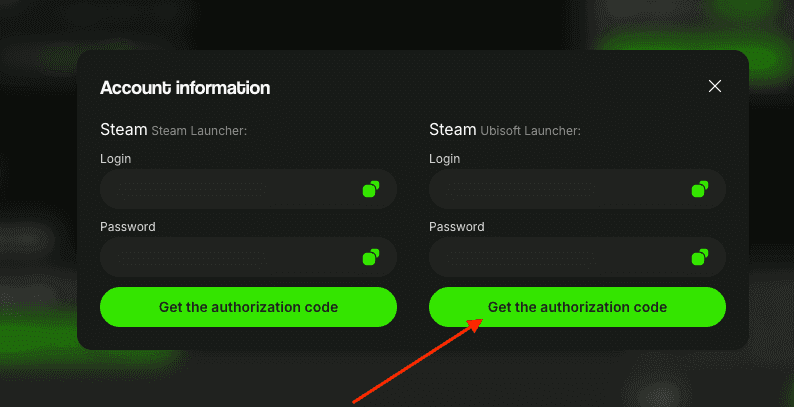
To receive a one-time code:
-
Log in to your Personal Account on the website.
-
In the Purchases section, click “Show details” for the required game.
-
Under the login details, click the “Get authorization code” button.
-
Copy the code and paste it into the launcher window.
⚠️ Important: In the login window, be sure to check “Remember me”, and when prompted next time, choose “Stay signed in”.
✅ 6. Launch the game from Steam
If the game uses Denuvo protection, you must launch it once while online and wait until you reach the main menu:
- Launch the game
- Wait until it loads to the main menu
- Exit the game completely
This step is only required once!
✅ 7. Enable Offline Mode and launch the game via Steam
To enable Offline Mode:
- Open the Steam client.
- Click Steam in the top-left menu.
- Select Go Offline… → Restart game in Offline Mode.
.
✅ 8. Enable Offline Mode in EA App
Attention! EA App does not have a function to disable cloud saves like Steam and other launchers. By default, as soon as the launcher connects to the internet, it synchronizes saves automatically. To avoid losing your game progress, do not disable Offline Mode in EA App and do not launch the game while online.
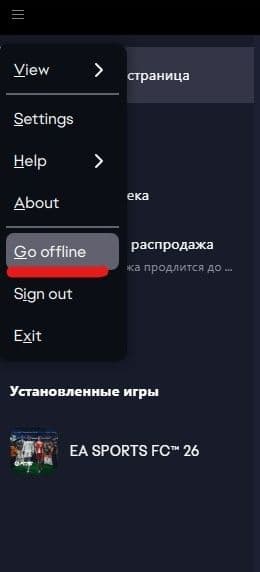
Important ❗
Before each Steam launch, make sure the account is in Offline Mode! ❗
You can now launch the game from your Library and play.
Additional information:
- It is recommended to use this account in Offline Mode.
- The account is not compatible with cloud gaming services.
❗ Whenever possible, sign out via Steam → Change Account… ❗
This helps you avoid having to enter a new Steam Guard code next time.
FAQ
What is offline activation?
Offline activation means you get access to a Steam account with a licensed game at a reduced price: you receive an account with a pre-purchased game, install it using the official Steam client, and then—just in a couple of clicks—switch Steam to offline mode and play. Your game saves remain on your computer, you can always return to your game, update it if needed, freely switch between accounts, and log out completely from the given account whenever you need it.
What is the Gamer's Galaxy Subscription?
It's access to a vast catalog of licensed Steam games available on our website! The catalog is regularly updated with new releases.
Where can I get the account login code?
The one-time login code is available in the account details section next to your username and password. Click the "Get Code" button to receive it.
Will my personal account get banned?
No, your personal account will not be linked to any offline accounts you purchase from us., so there is no risk that your personal account can be banned anyhow. Besides this all accounts on our website belong to us, all games are purchased by us, and we provide a 5-year guarantee for any account.
Are there any regional restrictions?
No, our accounts have no regional restrictions, and you can play from anywhere in the world.
Can I continue to use my personal account?
Yes, you can use multiple accounts at the same time and freely switch between your own and purchased accounts.
Can I play the purchased game from my own account?
No, when you purchase offline activation, you can only play using the provided account.
What is the difference between a subscription and purchasing an offline account from you?
When you purchase an offline account, you get the game forever—it remains in your purchases section with up-to-date data, and will be available even years later. A subscription, on the other hand, gives you access to the entire game library on the site, including new releases. You can play any available games without restrictions, but after the subscription period ends, access to the accounts is revoked.
Is it safe to pay by card on Gamer's Galaxy?
Yes, the site uses secure SSL encryption, so your payment is absolutely safe. You can also pay via the Fast Payment System (SBP) without entering your card details.
Is online play available?
Yes, online play is available on all accounts, but due to shared use, we cannot guarantee stable online access. If another user logs in while you’re online, you may be disconnected from the game. For rental accounts, this limitation does not apply—you are the only user and can play online without issues.
What is 3 / 7 / 14-day rental?
A 3 / 7 / 14-day rental is temporary access to an account. Unlike purchasing an offline account, during the rental period you are the only user of the account and can freely play online
Can I change the account details?
No, you cannot change the details on the purchased account. Any attempt to change the information is prohibited and may result in the loss of access to the account.

INSIDE
19,00 ₽

Age of Wonders 4
99,00 ₽
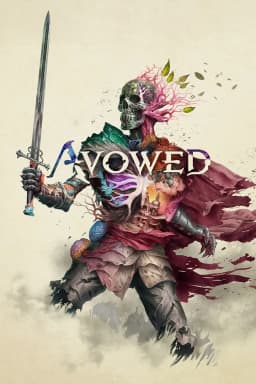
Avowed
149,00 ₽

Unravel two
49,00 ₽

Prince of Persia: The Forgotten Sands
49,00 ₽
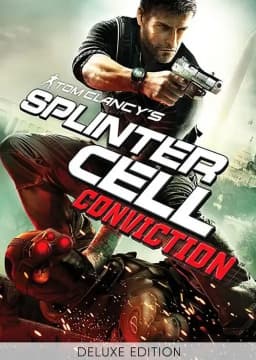
Splinter Cell: Conviction
49,00 ₽

Windrose
59,00 ₽

Layers of Fear
99,00 ₽
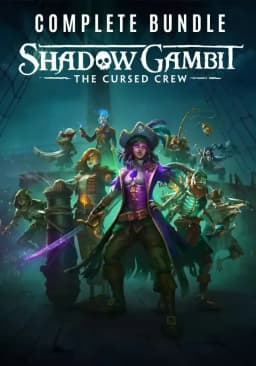
Shadow Gambit: The Cursed Crew
49,00 ₽

Commandos: Origins
99,00 ₽

Fallout 4
49,00 ₽

Dying Light 2 Stay Human
49,00 ₽

Dead Space 2023
99,00 ₽

Half-Life 2 Complete
25,00 ₽

Lies of P
299,00 ₽

Far Cry 5
299,00 ₽

Last Train Home
59,00 ₽

Two Point Hospital
149,00 ₽

Prince of Persia: The Lost Crown
59,00 ₽

Sons of the Forest
89,00 ₽